











Upgrade Your Home & Simplify Life with Google Nest Devices

Published on: 08 April 2023 Last Updated on: 11 September 2024
Google Nest Devices

Are you tired of juggling multiple remotes and struggling to manage your home’s various systems? If so, it’s time to consider upgrading to Google Nest, a series of smart devices designed to simplify your life and streamline your home.

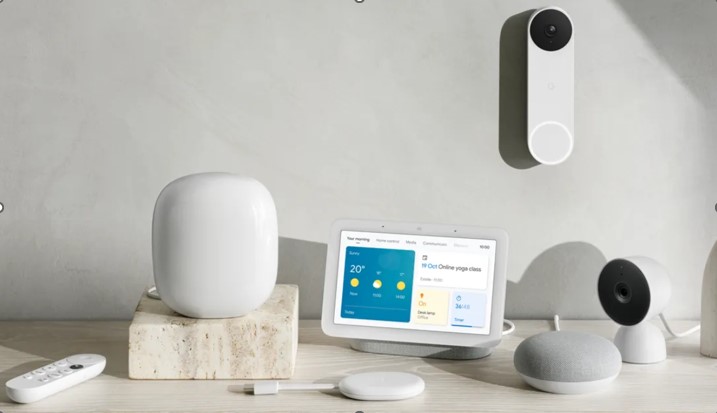
From voice-activated assistants to automated thermostats and security systems, the Nest line of products offers unparalleled convenience and control, allowing you to enjoy a more comfortable and efficient living space. In this post, I’ll highlight the top  Google Nest devices that you should consider for your home. Get ready to take your living space to the next level with some of these cutting-edge Google products online stores offer.

Nest Hub
Google Nest DevicesGoogle Nest Devices

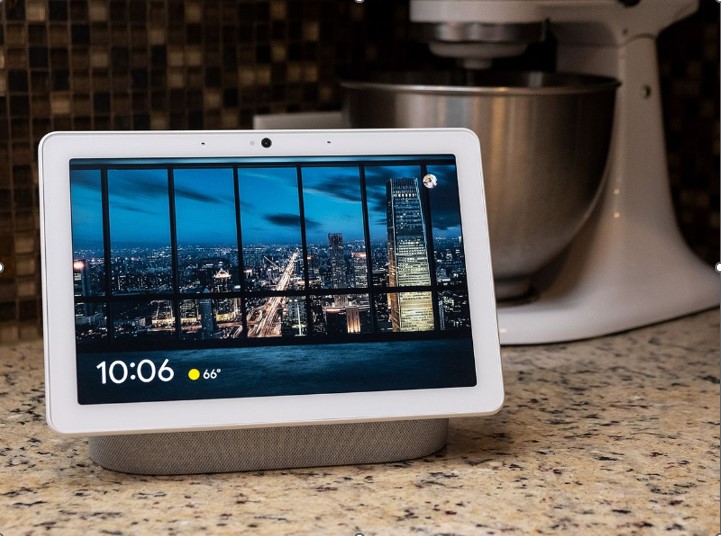
The Nest Hub is a fantastic device with many benefits. It’s essentially a smart display that helps you manage your daily tasks and activities.  With voice commands, you can ask it to play music, show your calendar, check the weather, set reminders, and even control other compatible smart devices in your home. This means that it allows you to do things like turn off the lights or adjust the temperature without ever having to get up from your sofa.

Another benefit of these Google products is that they help keep you organized. You can use the Nest hub to create to-do lists and set reminders. This is especially useful if you have a busy schedule or tend to forget things easily.

It also has a built-in speaker and can display photos from your Google Photos account. This means that you can use it to play music or watch videos while you’re doing other things around the house. And because it has a screen, it lets you make video calls or watch cooking videos while you’re in the kitchen.

This product’s connectivity with other smart devices is one of its best features. You can use it to manage devices like your smart locks, thermostat, and lighting. It becomes a central center for all of your smart home gadgets as a result, making your life much simpler.

Nest Wi-Fi Router
Nest Wi-Fi Router

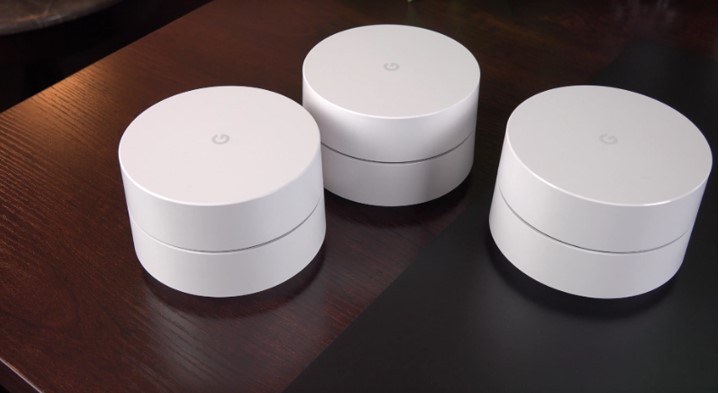
The Nest Wi-Fi Router is a mesh system that helps eliminate dead zones and provides reliable internet coverage throughout your home. It’s designed to be easy to set up, and you can use the Home app to manage your network and make any necessary changes.

These Google products’ online speed is their best feature. They employ cutting-edge technology to provide your entire home access to quick, dependable internet. This entails that there won’t be any delays or buffering as you watch movies, play games, or surf the internet!

Nest Camera
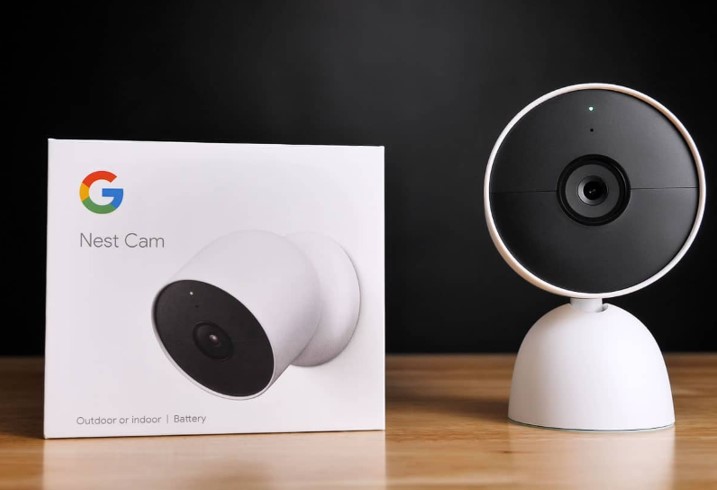
Nest Camera

Nest Cameras are a great product for anyone looking to keep an eye on their home. You can use the Google Home app to connect and manage your cameras, and you can view live footage from your phone or tablet. This lets you keep an eye on your home from anywhere in the world if you have an internet connection.

These Google products Australia tech stores offer are an excellent addition to your baby nursery! They let you view live footage, so you can check in on your baby at any time and make sure they’re sleeping safely and comfortably. They also come with a variety of features that make them especially well-suited for use in a nursery. For example, they have night vision capabilities that allow you to still see your baby even in low light conditions. They have motion and sound detection, so you’ll be alerted if your baby wakes up or starts crying.

Nest Protect Smoke Alarm
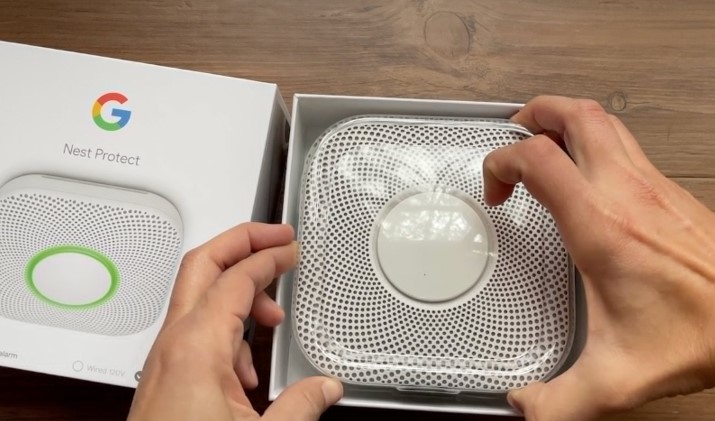
Nest Protect Smoke Alarm

You can feel completely secure in your home’s security thanks to this fantastic piece of technology. The Nest Protect is a high-tech smoke and CO detector that connects to your home WiFi network. Even while you are not at home, it sends you warnings to your phone if it detects smoke or carbon monoxide. Additionally, if you have more than one Nest Protect in your house, they can talk to one another to give you an even fuller picture of what’s happening.

But the Nest Protect isn’t just any old smoke alarm. When you purchase Google products like these, you get a bunch of practical features. For example, they have a built-in speaker that can give you voice alerts in addition to the standard beeping. And, if you have a Nest thermostat, the Nest Protect can communicate with it to turn off your furnace if it detects carbon monoxide.

Nest Doorbell
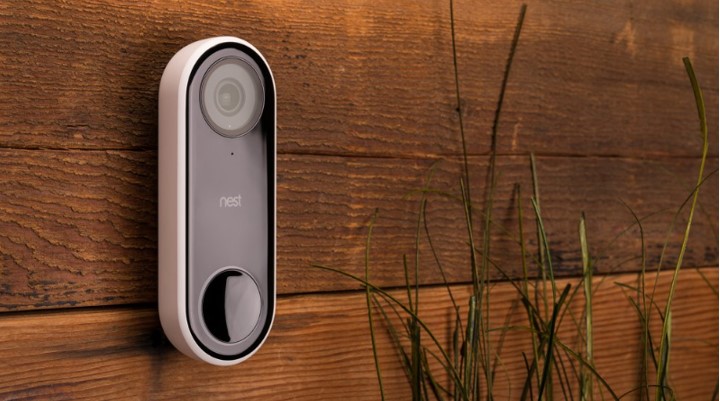
Nest Doorbell

The Nest Doorbell is a nifty little gadget that makes a big difference in the security of your home. It’s a smart doorbell that connects to your Wi-Fi network and allows you to see and communicate with anyone who comes to your front door, even when you’re not home.

One of the coolest things about it is its ability to send you alerts and video clips when someone rings your doorbell or approaches your front door. This lets you keep an eye on your home even when you’re away, and you can even use the two-way audio feature to talk to whoever is at the door. You could even use it to let delivery drivers know where to leave your packages if you’re not home!

Are Google Nest Products Worth It?

Nest products are a great investment if you’re looking to make your home more comfortable, secure, and convenient. One of the best things about these products is their integration with Google Assistant and other smart home platforms. This means you can control your Nest devices with your voice, your smartphone, or even your smartwatch. And with the ability to create customized routines and automation, you can tailor your smart home to fit your lifestyle and needs.

Another advantage of these products is their advanced features and technology. For example, the Nest Learning Thermostat learns your preferences and automatically adjusts the temperature of your home to save energy and money. The Nest Cam IQ can recognize faces and send you personalized alerts when someone it doesn’t recognize enters your home. And the Nest Hello Doorbell shows you a live video feed of who is at your door, even when you’re not home!

From smart thermostats to doorbells, cameras, and smoke detectors, the possibilities are endless with smart Google products. So why not take the first step towards a fully connected smart home and make your life a little easier?

Read Also:

Abdul Aziz Mondol is a professional blogger who is having a colossal interest in writing blogs and other jones of calligraphies. In terms of his professional commitments, he loves to share content related to business, finance, technology, and the gaming niche.

View all posts

Leave a Reply

Your email address will not be published. Required fields are marked *

Related

google thanos

How To Play Google Thanos Snap In 2024?  

Are you unable to find Google thanos on Google anymore? Do you love playing the game? Read this article to learn how to play Google thanos snap in 2024. Google constantly releases several Easter eggs over the years to engage users. The google thanos Easter egg was released when the Avengers: Endgame was about to be removed and went viral. It coincided with the film's release, and the Easter egg's effect stayed for some time. People were excited to fill the void by making Thanos snap his fingers on Google until the film Avengers: Endgame was finally released. The Easter egg of the infinity gauntlet can be found when you search "Thanos." The Thanos glove appears on the page, and when you click on the right side of the gauntlet, half of the text on the page will vanish. It is very similar to what Thanos does in the film, where the snap of his fingers wearing the infinity gauntlet will eliminate half of the population on Earth. The gauntlet has all six infinity stones; hence, clicking on it again means the time stone has been activated. All the vanished search results will reappear on the screen. How To Play Google Thanos Snap In 2024? This Easter egg was created based on the latest movie in the Avengers series, the Avengers: Endgame. It is important to understand that the Easter egg grabbed the users' attention and gave more exposure to the hype of the film. It was the contribution of Google to keep the excitement for the film. The way the text disappears, it looks like Thanos snaps Google just like he did with the world's population. With the hype around Marvel films and games, Avengers: Endgame has set, Google also received effective exposure as it received much attention. The hidden treats Google creates over the years based on different events excite the users. Avengers: Endgame is one such event that made people excited. The Thanos Gauntlet also encouraged people to learn and be curious about the character development in the film. Another hidden Easter egg created around the Avengers: Endgame buzz included Roscoe Simons and Captain America. Several keywords can be used to search the infinity gauntlet, such as "Infinity Gauntlet." "Thanos glove" and "Thanos." Where To Find Google Thanos In Google? The Easter egg was removed from Google in the middle of 2020. Google thanos is not available in the search tab of Google. However, you can find it on a good website. The feature is still the same. However, it is not accessible in the Google search tab anymore. The search engines are designed to offer results that are horizontally flipped. good has been developed so that it is a mirror image of the Google search engine. For the third-party website, you do not need to search it. You will find it by going to the website. Why Was Google Thanos Removed From Google? It still needs to be removed. However, it is an Easter egg that is time sensitive. As it highlighted the release of the film, after the release of the film and success, it is not as relatable except for the fans. Many people who are not huge fans of the Avengers might not feel relatable for longer. The Thanos snap is a hidden Easter egg that cannot be directly accessed in 2024. It was first seen in April 2019 when it was time for the Avengers: Endgame to release. The effect was more like an animation where the snap would wipe half of the search on Google. There are Easter eggs that have been present in Google for a long time. However, Thanos Google is an Easter egg that has been temporary. It is not available in the search tab anymore. For example, an Easter egg was added as a Bat Signal in February 2022 on the search page to honor Mat Reaves's Batman. You can also find Easter eggs related to films such as Sonic, StarCraft, etc. Other Easter Eggs On Google Google has created some Easter eggs based on popular tv shows such as The Mandalorian and The Last of Us. Search "The Last of Us" on the web browser to find the Easter eggs related to this series. You will find a red mushroom at the bottom. If you click on the red mushroom, the screen will be infected with fungus, i.e., which will spread across the entire screen. You can then clock on the X icon beside the mushroom to clear the screen. It can also be brought back by clicking it again, where the time stone gets activated. For The Mandalorian Easter egg, you have to type "Grogu" or "The Mandalorian" on the search tab of Google. You will see Grogu appearing on the screen in the bottom-right corner. If you tap on Grogu, you will see him use the Force to destroy the section of the results. Other Tricks On Google That Will Amaze You Thanos snap Google trick is an exciting Easter egg that Google created to celebrate the event of the last movie in the Avengers series. It is a huge franchise and has broken all records worldwide with bookings. Another trick is "Google in 1998," in which, when you type in the search bar of Google, you will be taken to the inception year of Google. A trick," recursion," is found in Google as an Easter egg considering you will see repeated actions of the same activity. It seems like a repeated spell when checking and searching on recursion. How Do You Find The Thanos Google Search Easter Egg? Google has since removed the Thanos snap Easter egg, available online. It is applicable for those who want to experience this. Below, I will discuss how to find the Thanos Google search easter egg. Did you know Google can create and restore past easter eggs also? After visiting the elgooG's dedicated Thanos Snap page, I noticed that the easter egg works like before. Instead, the user is required to investigate the knowledge panel.    In this case, a small information box provides a quick overview of the place, person, or any fictional supervillain, especially for the small image. You must click on the picture to activate the Thanos Easter Egg. Above all, this will continue for a few seconds; in that case, the user will scroll down the page where they can notice significant portions of the search outcomes. It is mainly applicable to those that have entirely vanished. Equal to Google's original Thanos Snap Easter egg, where the procedure can entirely be reversed by clicking on the Infinity Gauntlet image once again. What Is the Other Google Easter Eggs List? Even though you might know about the creative Google Doodles, every function and functionality will keep evolving. Below, I am going to discuss the other Google Easter eggs list.    1) Baker's Dozen If you go to the search bar and look for "baker's dozen," you will see the number 13 on the calculator. The devil's dozen is 13, and it comes from the practice of medieval English bakers who provide an extra loaf while you sell the dozen of this easter egg.    2) Bletchley Park On the search results page, you will notice that Google's knowledge panel will translate the name of Bletchley Park. Aside from that, it regularly revealed the secret contacts of the Axis Powers.    3) Conway's Game of Life Simply Google for "Conway's Game of Life," then see some small blue boxes that move through the several parts and spread over the page. According to Wikipedia, The Game of Life is a cellular robot conceived by the British mathematician John Horton Conway in 1970. In this case, she requires no further input.    4) Play the Atari Breakout Game Do you want to kill the boredom? Well, you have finally reached the right place and the exact place. It would be a snap for anybody who values the oldies but goldies video games. This will certainly bring back some memories.    5) Askew If you want to tilt the screen, you must do so for "askew." I" is on" of Google's dGoogle'saster eggs. Everything else will still be functional, and if you look for anything else, the search engine results page will return to normal. Conclusion Google Thanos snap is a game that will always stay relatable for the fans of the MCU. Hence, you can read the article to find the game in 2024. Considering the game has been removed by Google, it is important to state that it will still be available on a third-party website mentioned in the article. Let us know in the comments below what other Easter eggs related to the film or series you like playing on Google. More Resources: How To Play Google Fan Game Like A Pro? Read This Blog Why Is Google Sucks Trending? Top Reasons And Justifications Be Safe From Google Click Fraud: Read This Blog To Know How

READ MOREDetails
search google or type a url

Should I Search Google Or Type A Url? Know Your Answer

If you should search Google or type a URL, you have your answer right here! Search Google is one of the most widely used search tools if someone wants to find something online. Even so, there are other ways. There is no good or bad way of doing this! However, depending on certain factors, there might be a preference. There are other search engines such as Yahoo!!, DuckDuckGo or Bing, apart from Google. Different ways include typing a URL and selecting a website from social media platforms. Yet, the two most popular ways of visiting websites or looking for information are to type a URL (Uniform Resource Locator) or type in the Omnibox of Google. Keywords are another way in which information and websites can be searched. At times, the URL of a website might be complex to remember; hence, to focus on specific content, you must search using the keywords or the name of the website on the Omnibox of Google. Should I Search Google Or Type A Url? Know Your Answer!   Image Source: digitaltrends.com Omnibox is a search box that appears when you open a new page on the Google browser. It has the default words “search Google or type a URL,” guiding users to do either of the two to find a website. Once you search Google or type URL, you have to press Enter to see the direct outcome of the search. There is also an option of searching through images on the right-hand side of the tab when opening a page of the Google browser. Users can also log in to their Gmail on this page, on the upper right-hand side of the browser. A feature named Search Google or Type a URL is also present in the update of Chrome Canary. It is a leading-edge browser version and has been the most updated version of the domain. Navigating this site is similar to navigating Google. What Is A Search Engine?   A search engine is a program that allows typing search topics or words and identifies them to match particular criteria in the data. The items that match the search are then displayed on the browser. Yahoo, Bing, and Google are popular search engines used across the globe. Yahoo comes second in popularity to Google, while Bing is someplace in the middle concerning the relevance of Yahoo and the accuracy of Google. The relevance of Yahoo search is far better than Google; however, the accuracy of Google cannot be matched by either of these. Search engines like Google work based on the information that matches the database and the keywords or phrases typed on the search engine. Search google or enter an address works regarding the identification of the index. The algorithm has been created to display the websites that match relevance and are indexed. Pros And Cons Of Using Google Search   A Google Search is the easiest way to find information if you need to remember the URL address. Once all the relevant information and websites have been displayed, they can be sifted through by the users and accordingly accessed. It can be time-consuming because, at times, the relevance ratio is much less than other websites. It leads to you going through 2 to 3 pages of the search results before you find what you are looking for. Searching information or websites on Google using words or phrases is a common step for all of us; however, there are certain pros and cons to the practice based on the purpose of your search. ProsConsMay not be relevant to the search input information overloadWith the paid search placements, results can be biasedMay not be relevant to the search input information overload with the paid search placements, results can be biased What Is Typing An Url?   Uniform Resource Locator or URL is like the exact address to locate a website; hence, it is identified as one of the pillars of the Internet. Along with URL, HTTP and hypertext are other pillars. It is through these sources that the browsers can retrieve all published pieces of information. The link on the address bar of a website is the URL of the website and can be used to find the website directly. It is the ideal choice if you want the specific search result; however, remembering the URL can sometimes be difficult. You can also use phrases or words that are present in the URL, which might display more closely relevant options. If it is an important website that users regularly visit, they can access it in the history or copy and paste it into a Word document or notes. Pros And Cons Of Typing A Url To Search   Quick access is the key advantage of typing a URL. Certain specific keywords can be used for the website, such as the name of the website. It is also time-saving, considering typing a correct URL will directly take you to the website. A URL is a unique resource that represents a resource, and it is associated with the website, which must be managed effectively. Based on its uses, the pros and cons have been identified. ProsConsDirect access to the webpage or website with direct access, it can bypass the search resultsTime savingDirect access to the webpage or website with direct access, it can bypass the search results time saving So What Is Better? Searching Google Or Typing A Url?   The main difference between typing a URL or searching on Google is that keywords or phrases will access multiple resources while the search or type web address is specific. Typing a URL is only effective if you know the website's address. However, if the search result is not exact, it will not give any productive results. The choice depends on the users and their fluency when accessing a specific search option, whether through Google search or by typing a URL. It is also based on the purpose of the investigation. So, for example, if someone needs to find a specific website, typing a URL is better. Search Google is a better option if a person wants to find information related to a specific topic or situation. There are also Google Autocomplete Predictions that are significant in further helping in the search. Overall, the choice depends on the purpose and the user concerning what they are choosing. Conclusion    Please read the article to learn more about your choice's effectiveness in finding information or a website by searching Google or typing a URL. Additional information has also been provided regarding the pros and cons of the options. Comment below about what you prefer when searching for something online and why. More Resources: What Data Does Google Analytics Prohibit Collecting? Google Feud Unblocked: All You Need To Know About In 2023 How Was Google In 1998? | Google 1998 Easter Eggs And More

READ MOREDetails
Google Play Cancel Subscription

Google Play Cancel Subscription: The Ultimate Guide To Managing Your App

Are you searching for how to cancel a subscription on Google Play? Well, you are not the only one. In the fast-paced digital age we live in, it's common for many of us to sign up for various app subscriptions. These subscriptions can range from streaming services to premium versions of our favorite apps. Thus promising a world of convenience and entertainment at our fingertips. However, as time goes on, we often find ourselves with a growing list of subscriptions, some of which we no longer use or need.That's why it is important to understand how to cancel these subscriptions on Google Play! If you were looking for a guide to the same, you have reached the right place! So, keep on reading this article till the end to learn more… Why Cancel A Subscription On Google Play?   The decision to cancel a subscription on Google Play is not one we can take lightly. There are several valid reasons why you might want to drop a subscription. Understanding these reasons can help you make an informed choice about your digital expenses. By understanding the reasons why you might want to cancel a subscription, you can make more deliberate choices. These can be about the services you choose to subscribe to. Thus, you can ensure that your money is being used to enhance your digital experience. Let us delve into the reasons behind why you might consider canceling a subscription on Google Play! 1. You No Longer Use It   It's common to download an app or sign up for a service with the best intentions, only to find that you rarely use it after the initial excitement wears off. Life gets busy, and our interests change. That fitness app you subscribed to a few months ago now collects virtual dust on your phone. Simply because you've found other ways to stay active.  Perhaps you subscribed to a news app but have since switched to other sources for your daily headlines. In these cases, canceling the subscription frees up your digital and financial space for services you value and use. 2. Financial Reasons   We all have to manage our finances, and sometimes subscriptions can accumulate to the point where they strain your budget. When you take a closer look at your bank statement, you might realize that you're paying for many subscriptions. Some of which you've forgotten about or no longer find valuable.  It's essential to focus on your spending. Canceling unused or less essential subscriptions can help you. How? Well, simply by redirecting your money to things that matter more. 3. Trial Period Ends   Many apps and services offer enticing free trials to get you hooked. While these trials can be an excellent way to test a service, they often automatically convert into paid subscriptions once the trial period ends. If you've tried out a subscription service during a free trial and found it's not what you were looking for, you'll want to cancel before it starts costing you. This prevents unexpected charges and ensures you're only paying for services you genuinely want. 4. You Got What You Needed   Sometimes, you subscribe to access specific content or features, and once you've obtained what you need, continuing the subscription may no longer be necessary. For instance, you might have subscribed to a streaming service to binge-watch a particular series. Once you've watched it, you've essentially achieved your goal, and there's no need to keep paying for the service. In such cases, canceling the subscription allows you to move on without ongoing costs. Understanding Google Play Subscription Types   To effectively manage your subscriptions on Google Play, it's essential to grasp the two main subscription types offered: in-app subscriptions and Play Pass. Each type serves a unique purpose and is billed differently. Let me break them down to help you make informed decisions about your digital subscriptions. 1. In-App Subscriptions   In-app subscriptions are the most common type of digital subscriptions on Google Play. They are subscriptions you buy through a specific app or service. Your Google Play account then bills these subscriptions. Examples of in-app subscriptions include streaming services like Netflix and music streaming platforms like Spotify Premium. Here's what you need to know about in-app subscriptions: App-Dependent: In-app subscriptions are entirely dependent on the app or service you're using. These subscriptions typically grant you access to premium features, content, or an ad-free experience within that specific app. Billed Through Google Play: When you subscribe to a service through an app, the payment is processed via your Google Play account. This means that your subscription charges are consolidated, making it easier to manage multiple subscriptions in one place. 2. Play Pass   Play Pass is a subscription service offered directly by Google. It provides subscribers with access to a curated selection of apps and games on the Google Play Store without ads or in-app purchases. Some of the apps and games available through Play Pass include Stardew Valley, Monument Valley, AccuWeather, and Pocket Casts, among others. Here are the key points to understand about Play Pass: Google's Subscription Service: Play Pass is a subscription service provided by Google itself. Unlike in-app subscriptions, it's not tied to a specific app or service but rather grants access to a variety of apps and games. Monthly Billing: Play Pass operates on a monthly billing cycle. You pay a fixed fee each month to access all the included apps and games. This fee is billed through your Google Play account. Diverse Content: Play Pass offers a diverse range of content, including games, productivity apps, fitness apps, and more. It's an excellent choice if you want to explore various apps without ads or in-app purchases. Free Trials: Google often offers free trial periods for Play Pass, allowing you to test it out before committing to a subscription. Accessibility: Play Pass can be accessed by multiple family members, making it a cost-effective option for households with multiple Android devices. Choosing The Right Subscription Type   Understanding the difference between in-app subscriptions and Play Pass is crucial for effectively managing your digital subscriptions on Google Play. Each type caters to distinct preferences and needs, whether you're looking to enhance a specific app's functionality or explore a curated selection of ad-free apps and games. The choice between in-app subscriptions and Play Pass depends on your specific needs and preferences: In-App Subscriptions: Opt for in-app subscriptions if you're particularly fond of a specific app or service and want to unlock its premium features. This is the choice for personalized subscriptions tailored to your unique interests. Play Pass: Consider Play Pass if you enjoy exploring a variety of apps and games and prefer an ad-free experience across multiple applications. It's an excellent choice for those looking for diverse content without additional costs. How To Cancel A Google Play Subscription?   Managing your app subscriptions on Google Play is a crucial aspect of responsible digital spending. Whether you're looking to cut costs, declutter your digital life, or simply unsubscribe from a service you no longer use, understanding how to cancel your subscriptions is essential. Here are some of the things that you can do to cancel your Google Play subscription: Method 1: Using The Google Play Store App   1. Open the Google Play Store: Begin by locating and tapping on the Google Play Store app icon on your Android device's home screen or in your app drawer. This opens the Google Play Store, your gateway to managing subscriptions. 2. Access Your Account: In the top-left corner of the Google Play Store app, you'll see three horizontal lines (often referred to as the "hamburger" menu). Tap on these lines to open a menu. Scroll down this menu until you find the "Subscriptions" option, and tap on it. 3. Select The Subscription: Inside the "Subscriptions" section, you'll see a list of all the subscriptions associated with your Google account. Browse through the list and locate the subscription you wish to cancel. Once you find it, tap on it to access its details. 4. Cancel Subscription: Within the subscription details, you'll see an option that says "Cancel subscription." Tap on this button to initiate the cancellation process. 5. Confirm: Google Play will prompt you to confirm your decision to cancel the subscription. Take a moment to review the details, including the date until which you'll have access to the service, and ensure it's the correct subscription. Once you're certain, tap "Cancel subscription" once more to confirm. 6. Done: Congratulations, your subscription is now canceled! You'll retain access to the service until the end of your current billing period, after which you won't be charged further. Using the Google Play Store app to manage your subscriptions offers a user-friendly and convenient way to cancel subscriptions directly from your Android device. It's a quick process that puts you in control of your digital expenses, ensuring that you only pay for the services you genuinely need and want. Method 2: Using The Google Play Website   Using the Google Play website to manage your subscriptions offers the advantage of a larger screen and may be more convenient if you're already working on your computer. It's a simple and effective way to keep your digital expenses in check and ensure you're only paying for the services that truly matter to you. Here's a step-by-step guide: 1. Visit The Google Play Website: Open your web browser and navigate to [play.google.com](https://play.google.com). 2. Login: Sign in to the Google account that is associated with the subscription you want to cancel. Make sure you're using the same account you used when you subscribed to the service. 3. Access Subscriptions: Once you're logged in, you'll see a menu on the left-hand side. Click on "Subscriptions." This will take you to a page that lists all your active subscriptions. 4. Choose The Subscription: Locate the subscription you wish to cancel from the list. It will display the app or service name, the renewal date, and the cost. 5. Cancel Subscription: Click on the "Manage" button next to the subscription you want to cancel. This will take you to the subscription details page. 6. Confirm Cancellation: On the subscription details page, you'll find information about the subscription and a "Cancel Subscription" option. Click on it. 7. Review And Confirm: Google Play will present you with the details of the cancellation, including when your access to the service will end. Carefully review this information. If you're sure you want to proceed, click "Cancel Subscription" once more to confirm. 8. Completion: Congratulations, you've successfully canceled your subscription using the Google Play website. You'll continue to have access to the service until the current billing period expires. Managing Multiple Subscriptions   If you're juggling multiple subscriptions, staying organized is crucial. Here are some tips to help you manage them effectively: 1. Keep Track: Make a list of all your subscriptions, including the renewal dates and costs. Apps like "Truebill" or "Bobby" can assist in tracking your subscriptions. 2. Prioritize: Review your list and determine which subscriptions are essential and which can be canceled. 3. Set Reminders: Use calendar reminders or apps to notify you a few days before a subscription renews. This gives you time to decide whether to keep or cancel it. 4. Bundle Or Share: Some services offer family or group plans. Consider sharing costs with friends or family members to reduce expenses. 5. Be Vigilant: Periodically review your bank or credit card statements to ensure you're not being charged for subscriptions you canceled. Troubleshooting Common Issues   While canceling subscriptions on Google Play is usually straightforward, you might encounter some issues. Here's how to address a few common ones: 1. Forgotten Account: If you can't remember which Google account you used for the subscription, check your email for billing receipts. This will often show the associated account. 2. No "Cancel" Option: If you don't see the "Cancel subscription" option, it might mean the subscription isn't billed through Google Play. Contact the app's support for assistance. 3. Refund Requests: If you believe you were charged for a subscription you canceled, contact Google Play support within 48 hours. They can investigate and possibly issue a refund. Wrapping It Up!   So, go ahead and take charge of your subscriptions. Cancel what you no longer need, enjoy the services you love, and keep your tech life in balance. Your wallet will thank you, and you'll have a newfound sense of control over your digital world. In case you were searching for ways to cancel your subscription to Google Play, I hope that this blog has been of help to you. If there are any other queries related to the same, feel free to let me know. All that you need to do is scroll down till you reach the bottom of the page. Then leave your comments and queries in the box below. And I will be there to answer them all for you! keep Reading About: Why Should You Look Into Google Drive Alternatives? These Music Streaming Services Can Get Your Groove On How Was Google In 1998? | Google 1998 Easter Eggs And More Everything You Need To Know About Google Play Refund In 2023

READ MOREDetails